How to Publish Word Document with Images Directly to WordPress / Blogger

When you receive a Microsoft Word document with images attached as a guest post, you may have to copy out the text and then add the images separately. I did search WordPress plugins directory maybe there would be a plugin that could actually publish to WordPress, keeping all images, styling and fonts intact but there was actually none. There’s only a trick to do this and the images in the Microsoft Word document will be intact.  The steps are as follows:

- First enable remote remote publishing from your WordPress setttings. Go to Settings > Writing and enable the options as shown below and save.
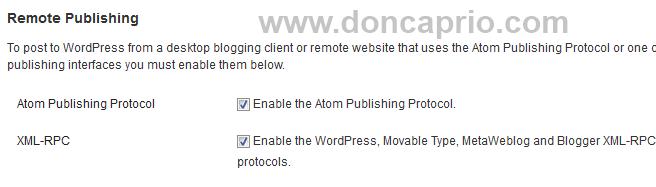
.docx and .doc to wordpress blog

- Open the Word document (.doc or .docx file) and click the Office button > Publish > Blog
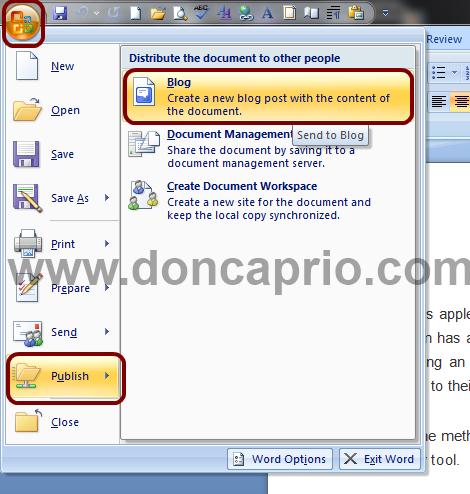
publish word document with images to wordpress

- The moment you hit the Publish button, you should be prompted to register a blog.
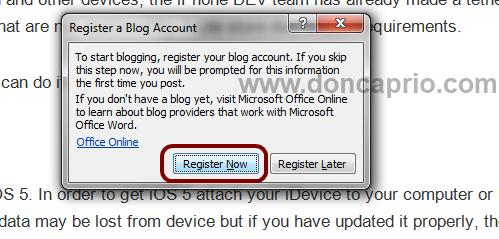
how to publish word document directly to wordpress

- Select your blog provider here. If you’re using WordPress, just select Worpress and if you’re  using Google hosted Blogger, select Blogger from the drop-down menu
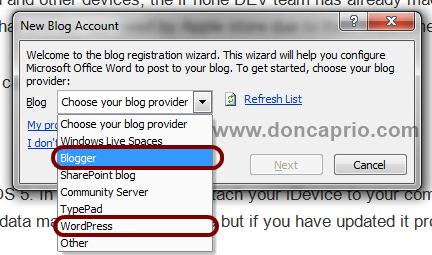
how to publish word document directly to blogger

- If you select Blogger, you only need to key in your username and password but it’s a bit different for WordPress: you need to fill the form as shown below:
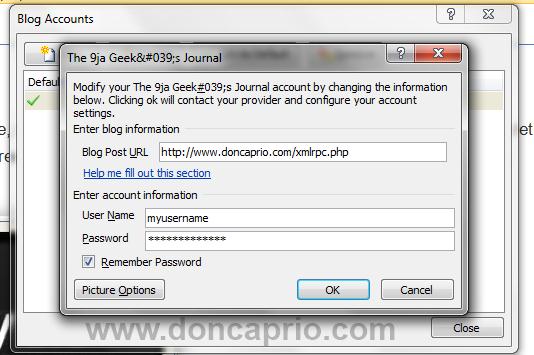
publish word document directly to blog

- With the correct details inserted, hit the OK button and you should be notified that your account registration was successful

word document to blog

Now everything is set and the Word document is ready to go live on your blog with all styling and images kept intact. You may need to insert categories and Microsoft Word even allows you to do this.
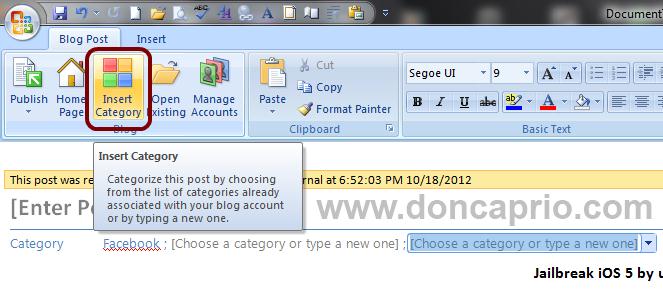
publish .doc or .docx document to wordpress

This definitely works and it’s how I publish guest articles on this blog. So, next time you need to publish a .doc or .docx document to WordPress or Blogger, looking for a plugin is a waste of time as you can do it directly from Microsoft Office.

Publishing images to Blogger

I couldn’t find a way to directly publish images to blogger except WordPress. If you’re on Blogger though, there’s a workaround.

- You need to create a free WordPress.com account. If you have one already, there’s no need for this and you may skip this step.

- Now follow the guide up there and select WordPress instead of Blogger. If Blogger is already registered on your MS-Word, click on Manage Account and create a new account using the free WordPress blog details you created earlier.
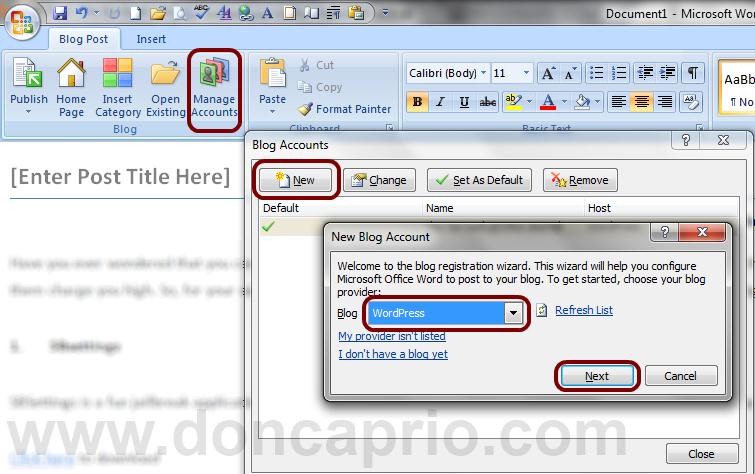
publish MS-Word document to wordpress and blogger

- Follow the guide up there for WordPress and you can publish the Word document to your free WordPress blog.

- Now log in to that WordPress dashboard and go to Posts. From here, you can edit the post and copy it to your Blogger post editor with the images and everything.

This is how I used to do it while on blogger before I started using self hosted WordPress: MS-Word > Free WordPress > Blogger. You can then delete the post on your WordPress account to avoid duplicate content on Google.


avatar
Don Caprio is a full time blogger / web designer living in Nigeria and apart from blogging, my other obsession is music. I'm a self-confessed Tupac fan, an iOS lover, an Android user, a Windows 8 power user, a writer with a 5-year old unfinished novel... and the list goes on and on. You can add me on Facebook, follow my updates on Twitter or add me to your circles on ! You can as well grab my feed and get updates through email.
avatar

@doncaprio

Tech blogger at http://doncaprio.com Web designer at http://doncaprio.org
Top 5 Reasons Why Android OS Sucks http://t.co/09TeyWGt7A via @doncaprio - 2 hours ago
avatar
avatar

Get free daily updates through email

Comments

  1. This used to be a very great problem in the past.
    I use windows live writer now and its cool

  2. Quite Similarly to a post I wrote earlier this year, we normally get stuck at the place we are asked to choose the “my Server” after signing in.
    Though, I used Ms Word 2007 to make my own tutorial, what Ms Word version did you use to write this?
    Edi – The A.J Geek recently posted..The PadFone 2 – Another Great Android EvolutionMy Profile

  3. You haven’t mentioned about pictures how to add them?
    i am using blogger!You haven’t mentioned about pictures how to add them?
    i am using blogger!
    Yogiraj mishra recently posted..laptop overheating solutionsMy Profile

    • Only WordPress adds the pictures automatically. There’s a way to do it on Blogger and I’ve udated the post on how to do it on Blogger. Read the additional note.

  4. You can easily do this from the wordpress post editor, there is button there titled ‘copy from word’. Clicking on it copies your stuff from any open word document with the formatting intact.

  5. I have been looking on how to publish word documents with the image directly to wordpress for quite a while now and I was extremely lucky to come across this. You have explained it really well and simply so I will definitely try it out, thank you for sharing.

  6. Will give it a try. i think it will give ability to add different fonts without bothering to use plugins

  7. Well, That’s cool. But mine still give me error after putting my email address and password. I’m using blogger.

  8. I am trying to find, how to use this step for some reason would not work in my f…..g computer. Be back soon if I succeed. Thanks for sharing. Absolutely great content

  9. Got to give it a trial. but hope its not the same with that on the wordpress dashboard?
    dapson recently posted..Is Your Blackberry Slow? Learn How To Make It FastMy Profile

  10. Thank you very much for the information. What version of microsoft Word can do this ?
    I just know about it. Again Thanks.
    Dickson recently posted..Cara Menghitung Upah LemburMy Profile

Speak Your Mind

*

CommentLuv badge