
While most people know this, a great deal of Windows users do not know that the ReadyBoost feature in Windows can make you utilize your flash drive as randon access memory (RAM) to speed up your computer. ReadyBoost allows you to use a USB drive to help cache memory. This helps improve the amount of physical memory available and increases the productivity of the hard drive installed in a system. For those with low RAM installed on their computer, ReadyBoost can make a big difference in some situations in how it performs. When I need to run programs that takes lots of system resources, ReadyBoost comes in handy.
How to Use ReadyBoost to Make Windows 7 Run Faster
To use your flash drive as RAM, it is recommened that the pen drive has a disk space of about 2GB but a 1GB flash drive too can still perform to some extent though it might be that effective. Microsoft recommends the amount of flash memory for ReadyBoost acceleration be one to three times the amount of random access memory (RAM) in your computer.
Insert your flash drive into the usb port and autoplay should pop up.
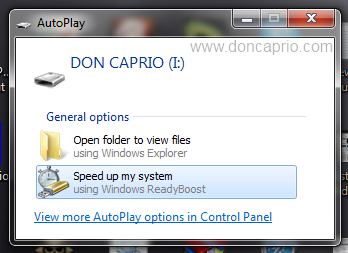 Just select speed up my system and you’re ready to use your flash drive as RAM. In case you’ve disable autoplay and nothing comes up, go to My Computer, right click on your flash drive and select Properties. Click on the ReadyBoost tab. You are like likely to see something similar as shown below:
 If ReadyBoost can’t be used on your computer, it’s got nothing to do with the flash drive. Even if you find a way to make it work, it’s not likely to have any noticeable effect on your computer’s speed. If your flash drive can be used, you should see this.
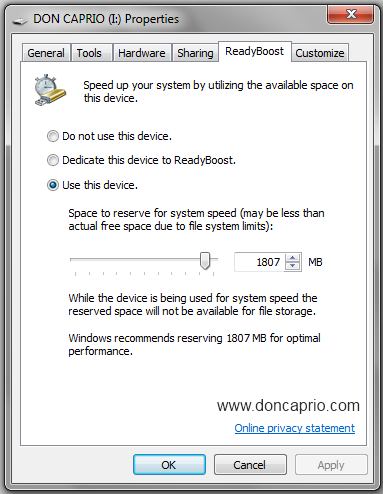 Select use this device and you’re good to go. At first, you might not notice any great difference but the more it works with your system, the more noticeable the changes show. ReadyBoost is not expected to work perfectly well on every computer but if it does on yours, you’ll quite be happen Windows has this great feature and it might save you some money as you won;t be needing to upgrade your RAM. If it fails to work on your computer or there isn’t much difference in your computer speed, it’s probably time to install a new RAM chip.

Comments
10 responses to “Using your Flash Drive as RAM to Speed Up your Computer”